
Overview
Standard links to your Reservations page often present guests with a blank calendar, requiring them to manually select dates before they can view specific rooms or packages. This extra step acts as a barrier and can lead to booking drop-offs.
By using URL Parameters, you eliminate this friction. Parameters allow you to pre-configure the booking engine experience—defining the exact package, dates, or view (like 'Open Variation')—so guests bypass the date selection screen and land directly on the filtered results they want to see.
Follow these steps:
1. Log In & Navigate
- Log into the Bookassist Web Platform: https://web.bookassist.com/
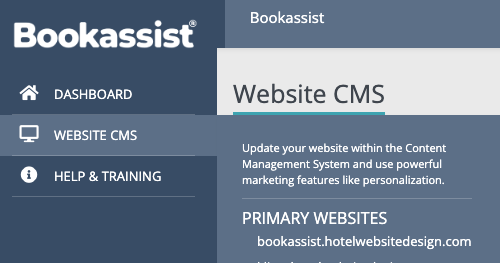
- Hover over the Website CMS tab and select the website you want to edit.
2. How to Create a Deep Link in CMS
-
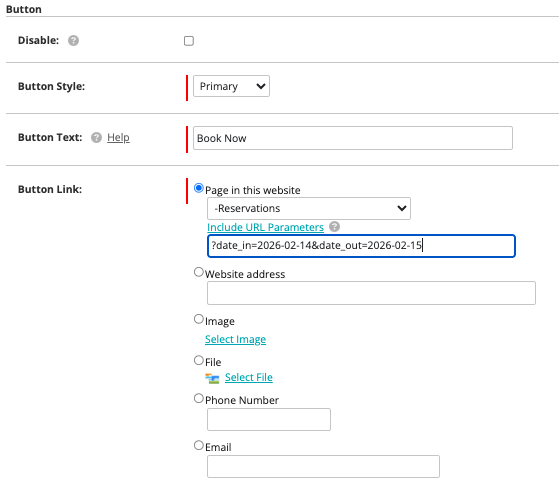
Select the Widget: Open the widget containing the button you wish to edit (e.g., Hero Carousel, Feature List).
-
Set Link Destination:
-
Link Type: Select Page in this website.
-
Select Page: Choose your internal Reservations page (often labeled
-ReservationsorBook Now).
-
-
Add Parameters:
-
Locate the field labeled Include URL Parameters.
-
Enter your query string here. Note: You must start with a question mark
?.
-
3. Common URL Parameters (Glossary)
You can combine these codes to build the exact booking experience you need. Connect the first parameter with a ? and all subsequent parameters with an &.
| Parameter | Function | Example Syntax |
| date_in | Pre-populates the arrival date (YYYY-MM-DD). | ?date_in=2026-12-01 |
| nn | Sets the Number of Nights. | &nn=2 |
| price_group | Filters results to show only a specific rate or package ID. | ?price_group=123456 |
| adults | Sets the number of adults. | ?adults=1 |
| rms | Sets the number of rooms. | &rms=2 |
| vgo=1 | Displays the "Open Variation" (Shows room details automatically). | &vgo=1 |
| kd=y | "Keep Date" - Prevents the engine from auto-populating default dates. | ?kd=y |
4. Scenario Examples
1. Specific Package (Price Group) Link Use this for "Book Now" buttons on a specific offer page.
-
Goal: Show only the "Winter Warmer" package (ID 128) with room details expanded.
-
CMS Parameter Field:
?price_group=128&vgo=1
2. Date-Specific Event (e.g., Valentine's Day) Use this to minimize booking errors for fixed-date packages.
-
Goal: Set arrival for Feb 14th, 2026, for a 1-night stay.
-
CMS Parameter Field:
?date_in=2026-02-14&nn=1
3. The "All-In-One" Link
-
Goal: A specific package, for a specific date, with 2 adults.
-
CMS Parameter Field:
?price_group=128&date_in=2026-09-05&nn=1&adults=2&vgo=1
Critical Notes
-
Syntax: The string must start with
?. If you miss this, the link will break. -
Mobile Users: When linking to specific dates, it is best practice to include the
&nn=(Number of Nights) parameter. Mobile booking engines often require a defined "Date Out" to function correctly. -
UTM Tracking: If you are using these links in Email Marketing (Ezines) or Social Media, ensure you add your UTM tracking parameters to the string as well (e.g.,
&utm_source=newsletter). -
ADA Compliance: Ensure your button text is descriptive. Instead of "Click Here," use "Book Winter Package" so users with screen readers know exactly what the link (and the parameters) will do.